


The Problem No One Warns You About
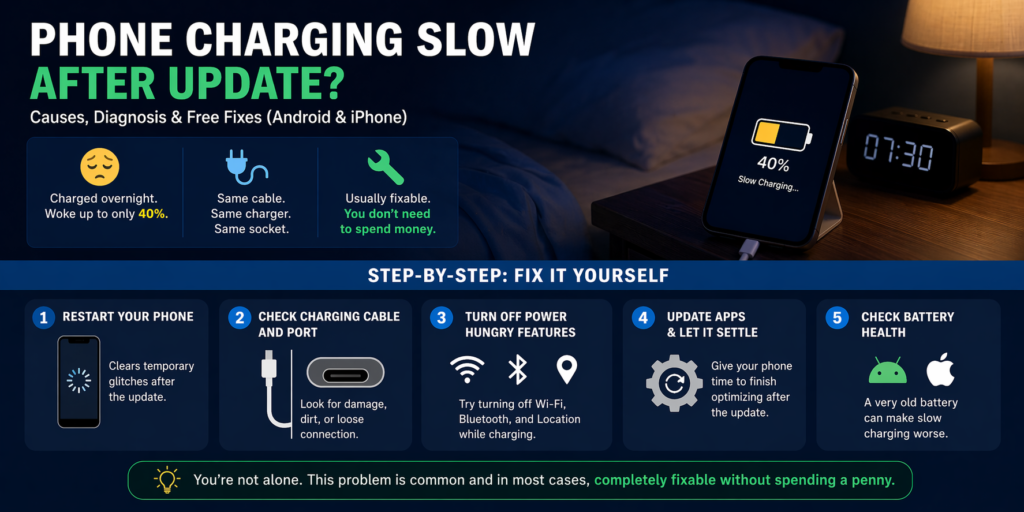
You plugged your phone in before bed, just like every other night. But this time, after last night’s system update, you woke up to find it was barely at 40%. Nothing changed. Same cable. Same charger. Same socket. Yet your phone is clearly charging slower than before the update.
Sounds frustratingly familiar. You are not alone. Thousands of users search for this exact problem every single week, and the good news is this: in most cases, it is entirely fixable without spending a penny.
This guide explains exactly what causes slow charging after a software update, how to diagnose it properly, and gives you step-by-step fixes for both Android and iPhone in 2026.
What Actually Happens to Your Phone During a System Update?
Most people think a system update just downloads, installs, and finishes. In reality, the work continues long after your phone reboots.
When a major OTA (Over-the-Air) update installs, your phone begins a heavy background workload that can last 24 to 48 hours. This includes:
-
- System indexing of all your apps and files
-
- App re-optimisation and compatibility checks
-
- Battery management profile recalibration
-
- New kernel updates adjusting how power is distributed
During all of these processes, your processor is working harder than usual. That means less available power goes toward actually charging your lithium-ion battery, and more is consumed by the phone itself. This is normal behavior. The problem is that manufacturers rarely tell you this upfront.
Why Is My Phone Charging Slower After the Update? The Real Causes
1. Background Processes Are Consuming Your Charging Power
Right after an update, your phone is essentially rebuilding itself in the background. Background app refresh, Google Play Services syncing, app updates downloading, and storage indexing all run simultaneously.
Every one of these processes pulls from the same power source your charger provides. The result? Your battery percentage climbs far more slowly than usual.
To check this on Android, go to Settings > Battery > Battery Usage. On iPhone, go to Settings > Battery and review the last 24 hours. You will likely see several apps with unusual activity.
2. Adaptive or Optimized Charging Was Silently Switched On
This is the cause most competitors completely ignore, and it catches users off guard every time.
Both Apple and Google build intelligent charging management features into their operating systems. Apple calls it “Optimized Battery Charging.” Google calls it Adaptive Charging. Samsung has its own version called Protect Battery.
A major update frequently resets these settings and switches them on by default. When active, these features intentionally slow your charging speed to protect long-term battery health. Your phone may deliberately pause charging at 80% or trickle-charge overnight.
To check on iPhone:
Settings > Battery > Battery Health and Charging > Optimised Battery Charging
To check on Android (Google Pixel):
Settings > Battery > Adaptive preferences > Adaptive Charging
To check on Samsung:
Settings > Battery and Device Care > Battery > Protect Battery
If any of these are on and you didn’t enable them, the update did.
3. The Update Introduced a Software Bug
Not every slow charging after Android update or iPhone charging slow after an iOS update situation resolves itself. Sometimes, the update itself contains a bug that directly interferes with the charging controller or power management settings.
Real examples from 2025 and 2026 include reported charging wattage drops on certain Samsung Galaxy S series devices after Android 15 and MagSafe speed reductions reported by iPhone 16 users after early iOS 18 point releases.
To check if your specific update has a known bug, go to Settings > About Phone > Software Version, note your exact version number, and search it alongside your device name and “charging issue” on Google. Check Reddit communities like r/Android or r/iPhone and Apple’s developer feedback tracker.
4. CPU Throttling and Thermal Management
After a heavy update, your phone may run warmer than usual because its processor is working so hard. When a phone detects rising temperature, thermal management kicks in and deliberately slows everything down, including charging, to prevent heat damage to internal components.
If your phone feels warm while charging slowly after an update, the update is almost certainly contributing to the problem.
Does a System Update Damage Your Battery Permanently?
No. This is one of the most common myths we hear from people bringing their phones in for “battery repair” after an update.
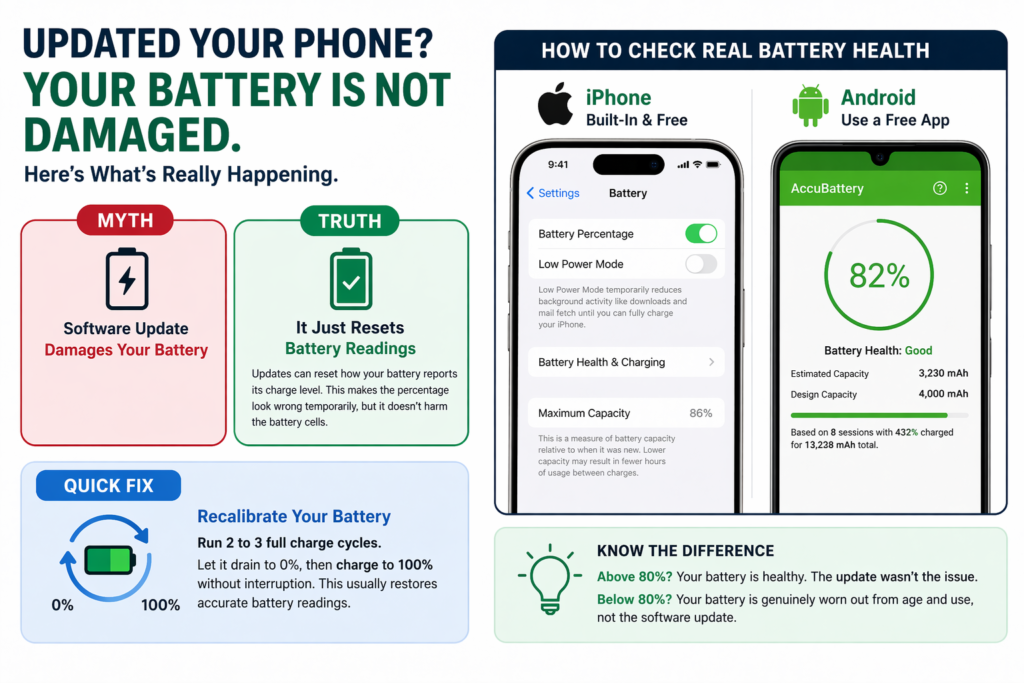
Software cannot physically damage your lithium-ion battery cells. What it can do is reset how the battery reports its charge level, causing the percentage to appear stuck, drain faster, or show inaccurate readings temporarily.
What you are experiencing is a battery recalibration period, not permanent damage. In most cases, running two or three full charge cycles (0% to 100% uninterrupted) corrects the accuracy completely.
If you want to check genuine battery health after an update, iPhone users can go to Settings > Battery > Battery Health and Charging. Android users can use a free app called AccuBattery, which measures your actual battery capacity against its original specification.
If health reads above 80%, the update is not your problem. If it reads well below 80%, that is a degraded battery from age and use, completely unrelated to the update.
Step-by-Step Fix Guide: Android (2026)
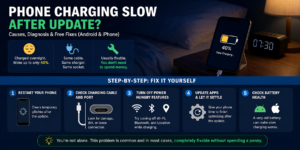
Work through these in order. Most users resolve the issue before reaching step 6.
-
- Fully restart your phone. Not just lock the screen. A full reboot clears temporary processes that accumulate during installation.
-
- Disable Adaptive Charging in Battery settings. Give it one full charge cycle and check if speed returns.
-
- Check Battery Usage and force stop any apps consuming unusually high battery in the last 24 hours.
-
- Clear the cache partition. On Samsung, power off, hold Volume Up and Power until the recovery menu appears, then select “Wipe Cache Partition.” On Pixel, the process is done through Settings > Storage > Free Up Space.
-
- Check Fast Charging is still enabled. Some updates reset this toggle. On Samsung: Settings > Battery and Device Care > Battery > More Battery Settings > Fast Charging.
-
- Wait 48 hours. If you are within the first two days after the update, the system indexing process may simply not be finished yet.
-
- Back up your data and perform a reset of all settings (not a factory reset). On iPhone: Settings > General > Transfer or Reset iPhone > Reset > Reset All Settings. On Android: Settings > General Management > Reset > Reset Settings.
-
- Factory reset as a last resort. Only do this if nothing else works, and only after a full backup.
Step-by-Step Fix Guide: iPhone (iOS 18 / 2026)
-
- Disable Optimized Battery Charging by going to Settings > Battery > Battery Health and Charging and toggling it off.
-
- Disable Clean Energy Charging (applies in certain regions): Use the same menu to toggle it off.
-
- Turn off Background App Refresh: Settings > General > Background App Refresh > Off.
-
- Force restart your iPhone: Press Volume Up, then Volume Down, then hold the Side button until the Apple logo appears.
-
- Check for a newer iOS point release. Apple regularly issues bug-fix patches within weeks of a major update. Go to Settings > General > Software Update.
-
- Reset all settings if the issue continues past 72 hours. You won’t lose data, but it will clear corrupted configuration files from the update.
-
- Contact Apple Support if your charging wattage is still notably reduced after all of the above. Bring your charging history and software version details with you.
Quick Settings Checklist: What to Turn Off for Faster Charging
| Setting | Where to Find It | Impact on Charging |
| Optimised Battery Charging | iOS: Settings > Battery | High |
| Adaptive Charging | Android: Settings > Battery | High |
| Clean Energy Charging | iOS: Settings > Battery (US) | High |
| Background App Refresh | iOS: Settings > General | Medium |
| Always-On Display | Android / iOS: Display Settings | Medium |
| Location Services | Both: Settings > Privacy | Low to Medium |
| Protect Battery (Samsung) | Battery & Device Care | High |
Is It My Charger, or Is It Really the Update?
Before assuming the software update is entirely responsible, it is worth ruling out hardware causes quickly.
Test your charging speed using a different certified cable and a different power adapter. If the speed jumps back immediately, your cable or charger was already degrading, and the update timing was coincidental.
One important thing many competitors miss: updates can change how your phone communicates with chargers over USB Power Delivery (USB-PD) protocols. This means that the new firmware may now throttle or completely reject a third-party, non-certified charger that previously worked fine.
If you suspect a charger communication issue, test with your original manufacturer’s charger first. Samsung users should test with the original Super Fast Charging adapter. iPhone users should test with an Apple-certified USB-C adapter.
If you have genuine concerns about whether your charging port is contributing to the problem, a quick check from a professional costs very little and gives you a clear answer. Our team at “smartphone repair” sees this situation regularly and can assess whether it is a software or hardware issue during a free diagnostic inspection.
How Long Does Slow Charging Last After an Update?
Here is the honest answer most guides do not give you.
If slow charging after a system update is caused by normal background processing, it typically resolves within 24 to 48 hours on its own.
If it is caused by adaptive charging being switched on, it resolves the moment you disable the feature.
If it is caused by a confirmed software bug, you are waiting for the manufacturer to release a hotfix patch, which typically arrives within two to four weeks of widespread reports.
If it has been more than 72 hours, your charging wattage is verified as below your device’s specification, and none of the settings fixes have worked, that is when you move from DIY troubleshooting to professional diagnosis.
Real User Scenarios: What We See and How It Was Fixed
Scenario 1:
A Samsung Galaxy S24 user came in reporting their phone had dropped from 45W charging to what felt like 10W overnight. The culprit was Adaptive Charging silently re-enabling after an Android 15 update, combined with Google Play Services running an unusually high background sync. Disabling adaptive charging and clearing the Play Services cache restored normal speeds within one charge cycle.
Scenario 2:
An iPhone 15 Pro user noticed their MagSafe charging felt noticeably slower after iOS 18.3. Both clean energy charging and optimized battery charging had been reset to active by the update. Disabling both and performing a force restart restored full MagSafe speed immediately.
Scenario 3:
A Google Pixel user experienced persistent slow wired charging after a Pixel Drop update. Cross-referencing the exact firmware version confirmed a known bug reported by multiple users. Installing the hotfix patch released three weeks later resolved it entirely.
When to Stop Troubleshooting and Get a Professional to Check It
Most slow-charging after a software update situations are fixable at home. But there are clear signs that professional diagnosis is the right next step.
You should seek expert help if:
-
- Charging wattage stays below 5W regardless of settings or charger used
-
- Your phone becomes very warm during every charge session
-
- The battery health percentage dropped noticeably within days of the update
-
- The charging port feels loose or shows signs of debris or physical damage
-
- Nothing in this guide has made any difference after 72 hours
Our technicians handle “phone battery and charging issues” every day across Android and iPhone devices. If you have worked through every step here and the problem persists, a proper diagnostic will tell you in minutes whether it is a firmware issue, a power management hardware fault, or a deteriorating battery that simply needs replacing.
We also carry out “iPhone repair” and “Samsung phone repair” for screen, battery, and charging-related faults. If your phone is showing any additional signs of trouble alongside the charging issue, such as shutting down unexpectedly, overheating persistently, or showing a swollen battery, bring it in straight away.