
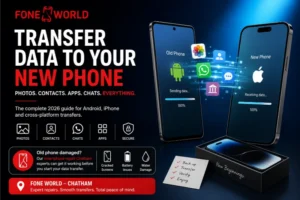


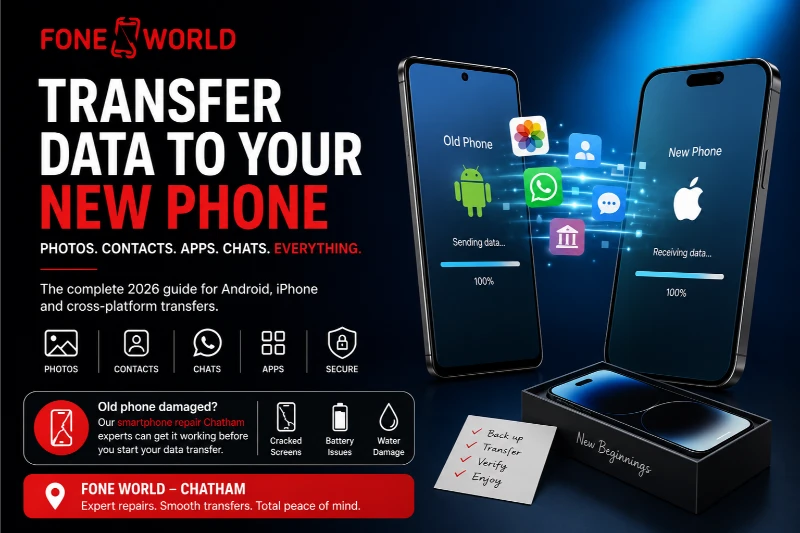
You just unboxed a shiny new phone. The screen is spotless, the battery is at 100%, and you are genuinely excited. Then reality hits. Three years of photos, all your contacts, your WhatsApp chats, and your banking apps: they are all sitting on your old device.
I have been through this myself. I remember setting up a new Samsung Galaxy and realizing I had not backed up my Google Authenticator. It took me two hours to recover access to four accounts. That experience taught me one thing: phone data transfer done wrong costs you time, stress, and sometimes real data loss.
This guide covers everything you need to know about how to transfer data to a new phone in 2026, whether you are moving from Android to Android, iPhone to iPhone, or switching platforms entirely. By the end, you will know exactly which method to use, what to do before and after, and which apps competitors never bother to mention.
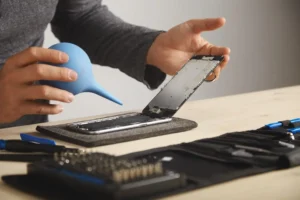
If your old phone has a cracked screen, a dead battery, or water damage making the transfer difficult, the team at “smartphone repair Chatham” at Fone World can sort it out before you start.
What Data Can Be Transferred to a New Phone?
Most people assume the big stuff moves over photos, contacts, and apps. And yes, it does. But the full list surprises most users.
Here is what typically transfers during a standard phone data transfer:
- Contacts (phone numbers, emails, notes)
- Photos and videos (camera roll, screenshots, downloads)
- Apps (though some need reinstalling or re-logging)
- Text messages (SMS and iMessage, depending on method)
- Call history
- Calendar events
- Notes (Google Keep, Apple Notes)
- Wi-Fi passwords (on newer Android and iPhone versions)
- Device settings and wallpapers
And here is what often does NOT transfer automatically, which most people skip over:
- Banking apps (require re-verification on the new device)
- Google Authenticator and Microsoft Authenticator
- WhatsApp chats when switching between Android and iPhone
- DRM-protected content (some downloaded Netflix titles, for instance)
- eSIM profiles
We will cover all of these below.
Before You Transfer Data: What to Do First
Skipping prep is where most people go wrong. I have seen a customer at our Chatham shop lose 800 photos because she started the transfer before taking a proper backup. Do not make that mistake.
Back Up Your Old Phone
For Android: Go to Settings, then System, then Backup. Switch on “Back up to Google Drive” and tap Back Up Now. Wait until it finishes.
For iPhone: Go to Settings, tap your name, then iCloud, then iCloud Backup. Tap Back Up Now and let it complete fully before doing anything else.
Update Both Devices
Make sure both phones run the latest software. Outdated operating systems can cause transfer errors or missing data. It takes five minutes and prevents a lot of headaches.
Charge Both Phones
Keep both phones above 80% battery, or plug them in. A dead battery mid-transfer can corrupt files.
Connect to a Strong Wi-Fi Network
Cloud transfers especially need a stable connection. Mobile data is too slow and can cut out.
Free Up Storage on the New Phone
If your new device has 64GB and your old phone has 70GB of data, something will not transfer. Delete old videos or move files to Google Drive or iCloud first.
How to Transfer Data From Android to Android
This is the most common scenario in the UK in 2026, especially with Samsung and Google Pixel upgrades happening constantly.
Using Google Backup (Easiest Method)
- On your old Android, go to Settings and tap System, then Backup.
- Make sure “Backup by Google One” is turned on.
- Tap Back Up Now and wait for it to finish.
- On your new Android, start the setup process.
- When prompted, choose “Copy from an Android phone” or “Restore from Google Backup.”
- Sign into your Google account and select the backup to restore.
This method moves contacts, app data, call history, SMS messages, device settings, and photos synced to Google Photos.
Using Samsung Smart Switch
If you are switching between Samsung devices, Samsung Smart Switch is faster and more thorough than Google Backup alone.
- Download Smart Switch on both devices (it comes pre-installed on most Samsung phones).
- Open Smart Switch on both phones.
- On the old Samsung, tap Send Data. On the new one, tap Receive Data.
- Choose Wi-Fi or a USB cable to connect.
- Select what you want to transfer and tap Transfer.
Smart Switch handles photos, videos, messages, contacts, apps, and even some settings that Google Backup misses. Typical transfer time for 32GB of data is 20 to 40 minutes over Wi-Fi.
Using a USB Cable
If Wi-Fi is slow or unavailable, connect both phones with a USB-C cable and a USB adapter. This is the fastest method and works without internet. Most users get a transfer speed of around 400MB per minute via cable.
How to Transfer Data From iPhone to iPhone
Apple makes phone data transfer between iPhones genuinely easy. I will be honest, it is the smoothest experience across any platform right now.
Quick Start
- Place your new iPhone next to your old one.
- An animation appears on the new iPhone. Hold your old iPhone over it to scan it.
- Enter your old iPhone’s passcode on the new device.
- Set up Face ID or Touch ID.
- Choose “Transfer Directly from iPhone” for a device-to-device transfer.
- Keep both phones close together and plugged in. Do not separate them.
A 64GB transfer takes roughly 30 to 60 minutes wirelessly, or 15 to 30 minutes with a Lightning-to-USB-C cable. After the initial transfer, apps continue downloading in the background.
iCloud Backup Method
If Quick Start is unavailable or you are setting up a new iPhone remotely:
- Back up your old iPhone to iCloud (Settings, your name, iCloud, iCloud Backup, Back Up Now).
- On your new iPhone, follow setup and choose Restore from iCloud Backup.
- Sign in with your Apple ID and pick the most recent backup.
The downside is that iCloud gives you only 5GB free. Most people need to temporarily purchase more storage for this method.
How to Transfer Data From Android to iPhone
Apple created an app called Move to iOS specifically for this switch. It is free and available on the Google Play Store.
- Start setting up your new iPhone and reach the “Apps & Data” screen.
- Tap “Move Data from Android.”
- On your Android, download and open Move to iOS.
- Tap Continue on both devices.
- A code appears on your iPhone. Enter it on your Android.
- The two devices create a private Wi-Fi connection.
- Select what you want to transfer: contacts, messages, photos, videos, and some free apps.
- Wait for the process to finish, then complete iPhone setup.
What transfers: contacts, message history, photos, videos, web bookmarks, email accounts, and calendar entries.
How to Transfer Data From iPhone to Android
Switching from iPhone to Android is less seamless, but Google has improved its tools in 2026.
Using Google’s Switch to Android App
- On your iPhone, download the “Switch to Android” app from the App Store.
- Open it and follow the prompts.
- Turn on your new Android and follow setup until you see “Copy apps & data.”
- Tap “Use your old device” and scan the QR code with your iPhone.
- Select what to transfer: contacts, photos, videos, messages, and WhatsApp.
As of 2026, the latest version of this app actually handles WhatsApp migration directly if both accounts are on the same phone number.
How to Transfer WhatsApp to a New Phone
WhatsApp is the one app that causes the most panic during phone upgrades. Three years of conversations, group chats, and voice notes: people really do not want to lose these.
Android to Android WhatsApp Transfer
WhatsApp backs up automatically to Google Drive. Go to WhatsApp Settings, Chats, and Chat Backup and tap Back Up. On your new Android, install WhatsApp, verify your number, and restore the backup when prompted. It is that straightforward.
iPhone to iPhone WhatsApp Transfer
WhatsApp on iPhone backs up to iCloud. Go to Settings, Chats, and Chat Backup and back up. On your new iPhone, install WhatsApp, verify your number, and restore from iCloud.
Android to iPhone or iPhone to Android
This is where it gets tricky. WhatsApp allows direct cross-platform transfer through the app itself since 2023. On iPhone, go to Settings, Chats, Move Chats to Android. Follow the prompts to link the devices. On Android, the same option appears during initial WhatsApp setup.
What About Banking Apps and Authenticator Apps?
Banking apps do not transfer their login sessions. When you open Barclays, Lloyds, or Monzo on your new phone, you will need to re-verify your identity. This is a security feature, not a bug. Have your debit card handy and access to your email or existing phone for verification codes.
Google Authenticator used to be a nightmare to transfer. As of 2024, Google added an account sync feature. Go to Google Authenticator on your old phone, tap your profile picture, and choose Transfer Accounts. Select Export Accounts, then scan the QR code on your new phone.
Microsoft Authenticator has a cloud backup option. On your old phone, go to Settings inside the app and enable Cloud Backup. On your new device, sign in and restore from backup.
Do this before you factory reset your old phone. I cannot stress that enough.
If your old phone has a broken screen making any of this difficult, the “iPhone screen repair” or “Samsung screen repair Chatham” service at Fone World can fix it so you can complete the transfer properly.
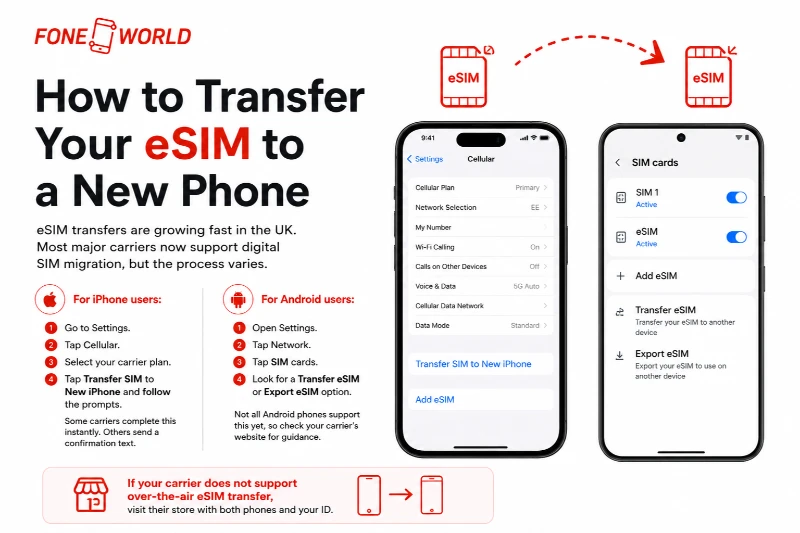
How to Transfer Your eSIM to a New Phone
eSIM transfers are growing fast in the UK. Most major carriers now support digital SIM migration, but the process varies.
For iPhone users: Go to Settings, then Cellular, then your carrier plan. Tap Transfer SIM to New iPhone and follow the prompts. Some carriers complete this instantly. Others send a confirmation text.
For Android users: Open Settings, then Network, then SIM cards. Look for a Transfer eSIM or Export eSIM option. Not all Android phones support this yet, so check your carrier’s website for guidance.
If your carrier does not support over-the-air eSIM transfer, visit their store with both phones and your ID.
Troubleshooting Common Phone Transfer Problems
Here is what to do when things go wrong, because they sometimes do.
Transfer Stuck or Frozen
If your move data to a new phone process gets stuck, do not panic and disconnect. Wait 10 minutes. If it genuinely does not move, restart both phones, reconnect, and try again. Most freezes resolve themselves.
Photos Missing After Transfer
Check Google Photos or iCloud first. Photos often sync in the background after the transfer completes. If they are still missing after an hour, open your cloud account on a browser and check if they are there but not yet downloaded to the device.
Apps Not Appearing on New Phone
App data transfers, but the apps themselves download from the store after setup. If an app is not appearing, check your App Store or Play Store purchase history and reinstall manually.
Wi-Fi Disconnecting During Transfer
This is common in homes with mesh networks or 5GHz connections. Switch your router to 2.4GHz during the transfer. It is slower but far more stable over longer distances.
New Phone Setup Checklist After Transfer
Once the transfer is done, run through this before you do anything else.
- Open Contacts and scroll through to confirm numbers transferred correctly.
- Open Photos and check the most recent 20 to 30 images.
- Open Messages and verify recent threads are present.
- Test a phone call to confirm the SIM or eSIM is active.
- Open your primary email app and check that it connects properly.
- Open WhatsApp and verify recent chats.
- Open your banking app and complete re-verification.
- Update Google Authenticator or Microsoft Authenticator on the new device.
- Confirm your cloud backup is now targeting the new phone.
- Once satisfied, sign out of all accounts on the old phone before factory resetting it.
If your old device needs a repair before you hand it on or sell it, perhaps a cracked screen or a battery issue, our “battery replacement” and “screen repair Chatham” services at Fone World can get it looking and working like new.
How Long Does Phone Data Transfer Take?
This is one of the most common questions people ask before starting. The answer depends on your transfer method and total data size.
| Transfer Method | 16GB Data | 32GB Data | 64GB Data |
| Quick Start (cable) | 10–15 mins | 15–30 mins | 30–45 mins |
| Quick Start (wireless) | 20–30 mins | 30–50 mins | 45–75 mins |
| iCloud Backup Restore | 25–40 mins | 40–70 mins | 60–90 mins |
| Google Backup | 20–35 mins | 35–60 mins | 55–80 mins |
| Samsung Smart Switch (Wi-Fi) | 15–25 mins | 25–40 mins | 40–60 mins |
| Move to iOS | 20–35 mins | 35–60 mins | 55–80 mins |
These are real-world estimates, not manufacturer marketing figures.
Conclusion
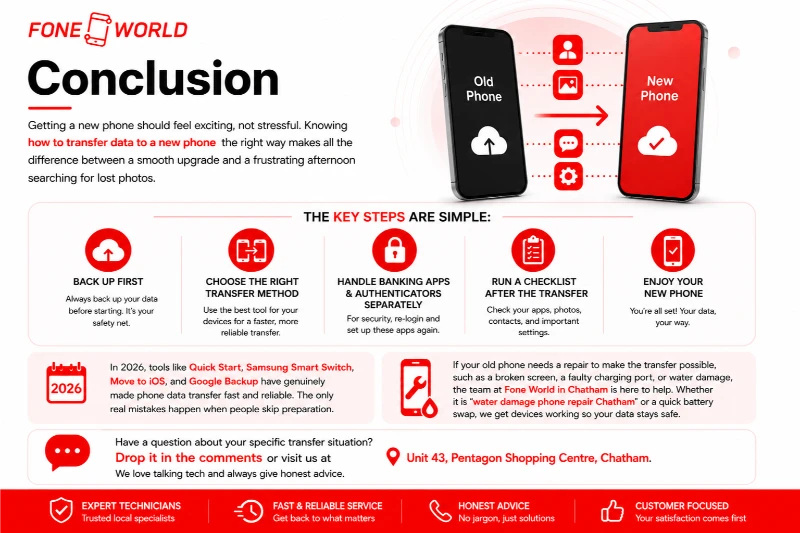
Getting a new phone should feel exciting, not stressful. Knowing how to transfer data to a new phone the right way makes all the difference between a smooth upgrade and a frustrating afternoon searching for lost photos.
The key steps are simple: back up first, choose the right transfer method for your devices, handle your banking apps and authenticators separately, and run a checklist after the transfer completes.
In 2026, tools like Quick Start, Samsung Smart Switch, Move to iOS, and Google Backup have genuinely made phone data transfer fast and reliable. The only real mistakes happen when people skip preparation.
If your old phone needs a repair to make the transfer possible, such as a broken screen, a faulty charging port, or water damage, the team at Fone World in Chatham is here to help. Whether it is “water damage phone repair Chatham” or a quick battery swap, we get devices working so your data stays safe.
Have a question about your specific transfer situation? Drop it in the comments or visit us at Unit 43, Pentagon Shopping Centre, Chatham. We love talking tech and always give honest advice.